Attaching Agent Skills to Operational Agents
This guide explains how to attach an approved Agent Skill version to an operational agent. In the product UI this action appears as Mount, because the approv...
This guide explains how to attach an approved Agent Skill version to an operational agent. In the product UI this action appears as Mount, because the approved skill files are mounted read-only for the selected agent.
Use this workflow when a live Assist agent should follow a reviewed team instruction instead of relying on scattered prompt docs or one-off user guidance.
Before you begin
- The Agent Skill needs an approved version.
- You need read access to the Agent Skill.
- You need edit access to the target agent.
- The Agent Skill and agent must be in the same workspace.
- The target agent should already have the tools and data access expected by the workflow.
- Attached Agent Skills are read-only in this release.
Steps
1. Open the Agent Skill
Open Skills, then select the Agent Skill you want the agent to use.
2. Open Usage
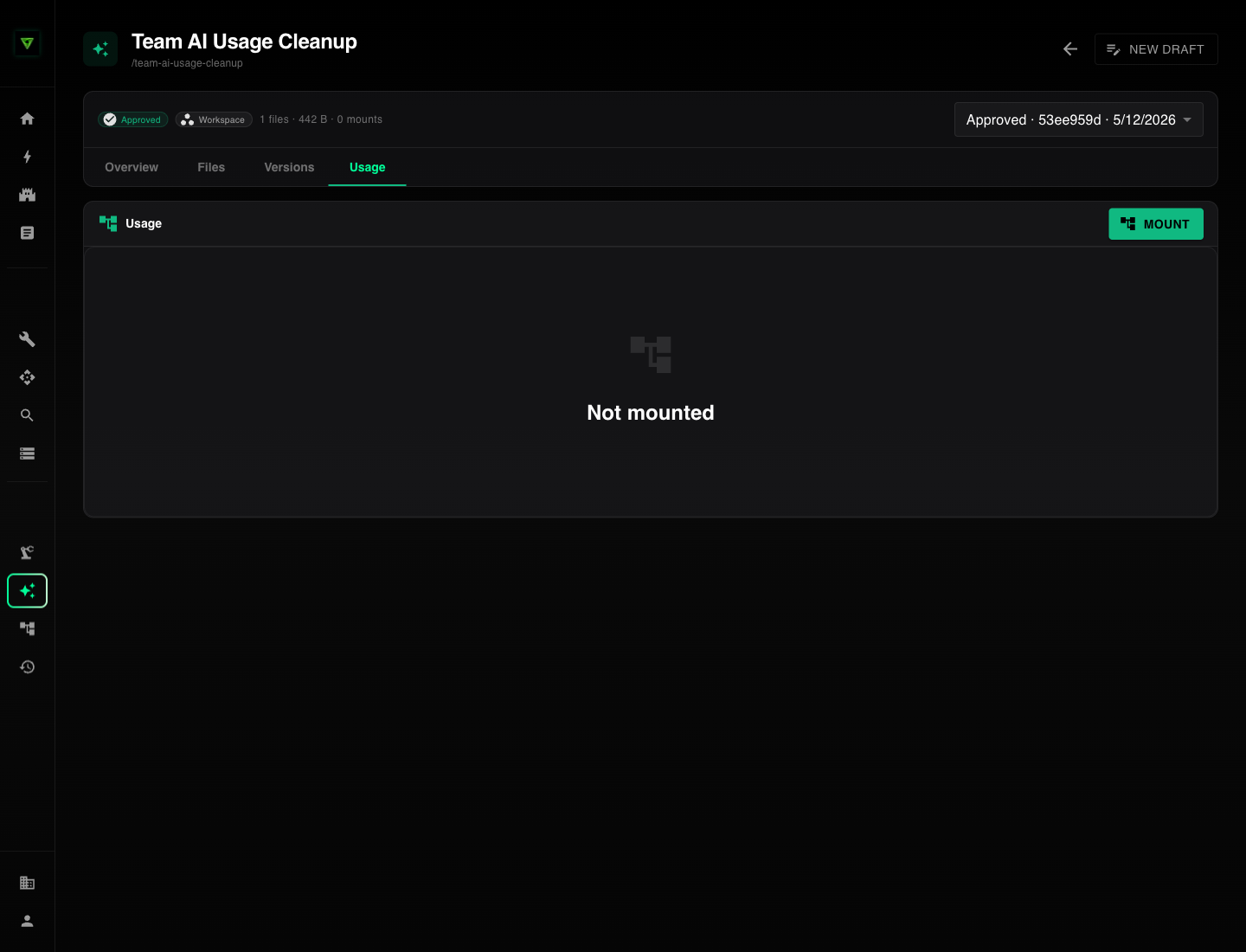
Select the Usage tab. This tab shows where the Agent Skill is attached and whether each attachment is on the latest approved version.
3. Start the attachment
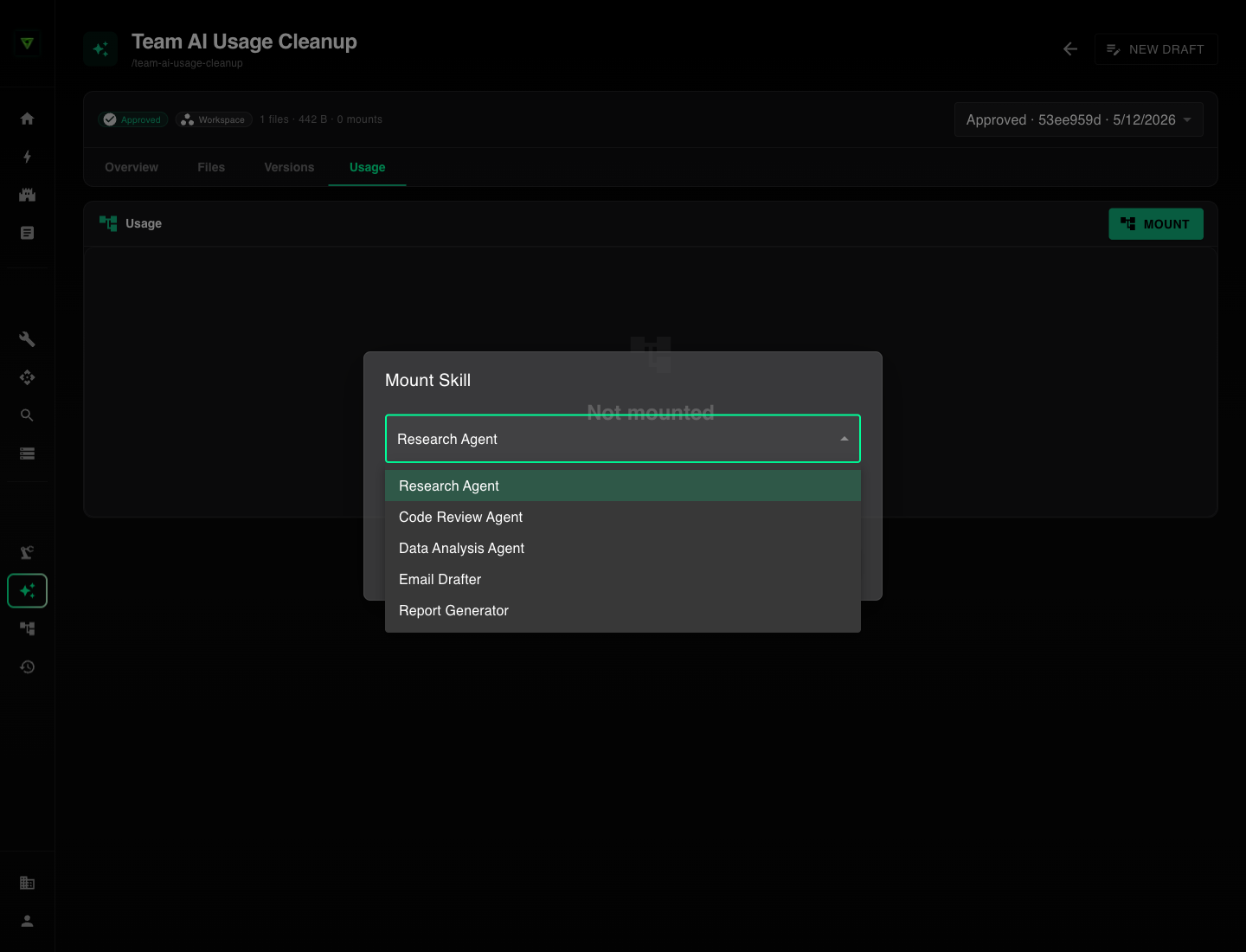
Click Mount. The Mount Skill dialog opens.
4. Choose the agent
Select the agent from the dropdown. Agents that already have the skill mounted are filtered out.
If the agent is missing, check whether you can edit that agent and whether it belongs to the same workspace as the skill.
5. Confirm the mount path
Assist suggests /skills/<skill-slug>. You can edit the mount path, but it must:
- Start with
/. - Not end with
/, unless it is exactly/. - Not contain
//.
Use a path that makes sense to the people reviewing the agent later. For example, /skills/team-ai-usage-cleanup is easier to understand than /skills/prompt-v3.
6. Attach the Agent Skill
Click Mount. The Agent Skill appears in the Usage tab for the selected agent.
7. Validate the workflow
Open the agent and ask it to do work that should trigger the Agent Skill. Use a realistic team scenario rather than a generic prompt.
Good validation prompts:
Review this shared prompt doc and identify which workflows should move into Assist.Draft a support escalation summary using our approved format.Turn these weekly notes into the standard operations update.
The agent receives an index of attached Agent Skills and reads the relevant SKILL.md before following the instructions.
What happens after mounting
The agent can read the mounted skill files, but it cannot edit them. If you approve a newer skill version later, the agent stays pinned to the old version until you click Upgrade on the mount.
This pinning behavior is useful during AI cleanup work. It lets a team test a revised workflow, approve it, and then roll it out to specific agents when managers and operators are ready.