Authoring and Approving Agent Skills
This guide explains how to write, edit, submit, and approve Agent Skill versions.
This guide explains how to write, edit, submit, and approve Agent Skill versions.
For a mid-sized company standardizing AI usage, approval is the step that turns an informal workflow into an Assist-managed workflow. It gives the team a clear point to check tone, data handling, required review, and whether the agent is being asked to do something it should not do.
Before you begin
- You need edit access to author a draft.
- The selected version must be a draft before files can be edited.
- Approved, pending, and rejected versions are read-only.
/SKILL.mdmust exist and start with valid YAML frontmatter containing a non-emptynameanddescriptionbefore it can be saved.- Identify the workflow owner who should approve the first production version.
Steps
1. Open the Agent Skill
Open Skills, then select the Agent Skill you want to edit.
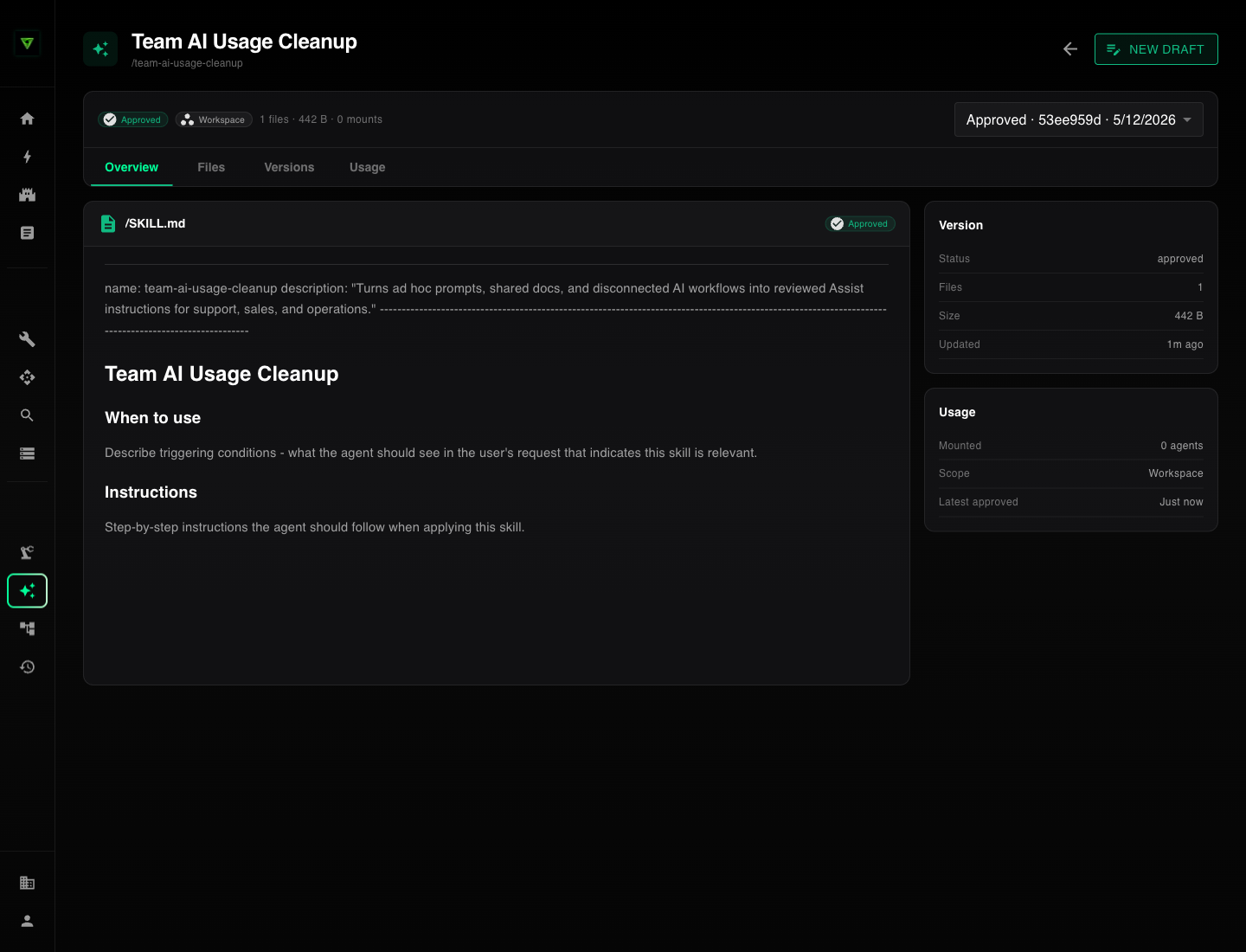
The detail page shows the current status, scope, version selector, and tabs for Overview, Files, Versions, and Usage.
2. Create a draft
If the selected version is approved and no draft already exists, click New Draft. Assist creates a draft based on the latest approved version.
If New Draft is not visible, check whether:
- You do not have edit access.
- A draft already exists.
- The selected version is pending review.
3. Open Files
Select Files. The file tree appears on the left and the editor appears on the right.
4. Write /SKILL.md as a managed workflow
Select /SKILL.md and write instructions that an Assist agent can follow. For AI usage cleanup, include:
Start the file with the metadata Assist uses to identify and select the skill:
---
name: skill-slug
description: Describe what the skill does and when an agent should use it.
---
Use the skill slug for name. Make description specific enough that an agent
can decide whether the skill applies before reading its full instructions.
In the Markdown body, include:
- When the agent should use the skill.
- Which inputs the user must provide.
- Which systems, documents, or examples the agent should inspect.
- The expected output format.
- What the agent should not do.
- When the agent should ask for human review before producing or sending work.
Good skills are specific. Instead of "help sales write follow-ups," write the trigger, required inputs, tone rules, output format, and review conditions.
5. Add supporting files
Click the Add file icon to add supporting material. Useful files include:
/examples/good-output.md/examples/bad-output.md/templates/team-summary.md/policies/customer-data-rules.md/checklists/review-before-rollout.md
Supporting files keep SKILL.md focused while giving reviewers enough detail to trust the workflow.
6. Save changes
Click the save icon. The button is enabled only when the selected file has unsaved changes.
7. Submit the draft
Click Submit. The draft becomes Pending and is read-only while it waits for review.
8. Approve or reject
An admin reviews the version.
- Approve makes the version available for attachment to agents.
- Reject records the reason and keeps the rejected version for history.
Recommended approval checklist
- The skill names the exact workflow it supports.
- The procedure defines when it should and should not run.
- The procedure does not depend on private prompts that only one employee understands.
- Sensitive data handling is explicit.
- Customer-facing outputs require human review when appropriate.
- The agent is not asked to access systems or take actions it cannot perform.
- The output format is useful to the team receiving the work.