Sharing a Chat
This guide walks through how to share an AI chat conversation with other people in your workspace.
This guide walks through how to share an AI chat conversation with other people in your workspace.
Before you begin
- You must be the chat owner or a workspace admin.
- The chat must have at least one message. You cannot share a chat before sending your first prompt.
- The AI must not be actively generating a response. Wait for any in-progress response to finish before sharing.
Steps
1. Open the chat you want to share
Navigate to the chat from your chat history or open it directly if you are already in the conversation.
2. Open the share dialog
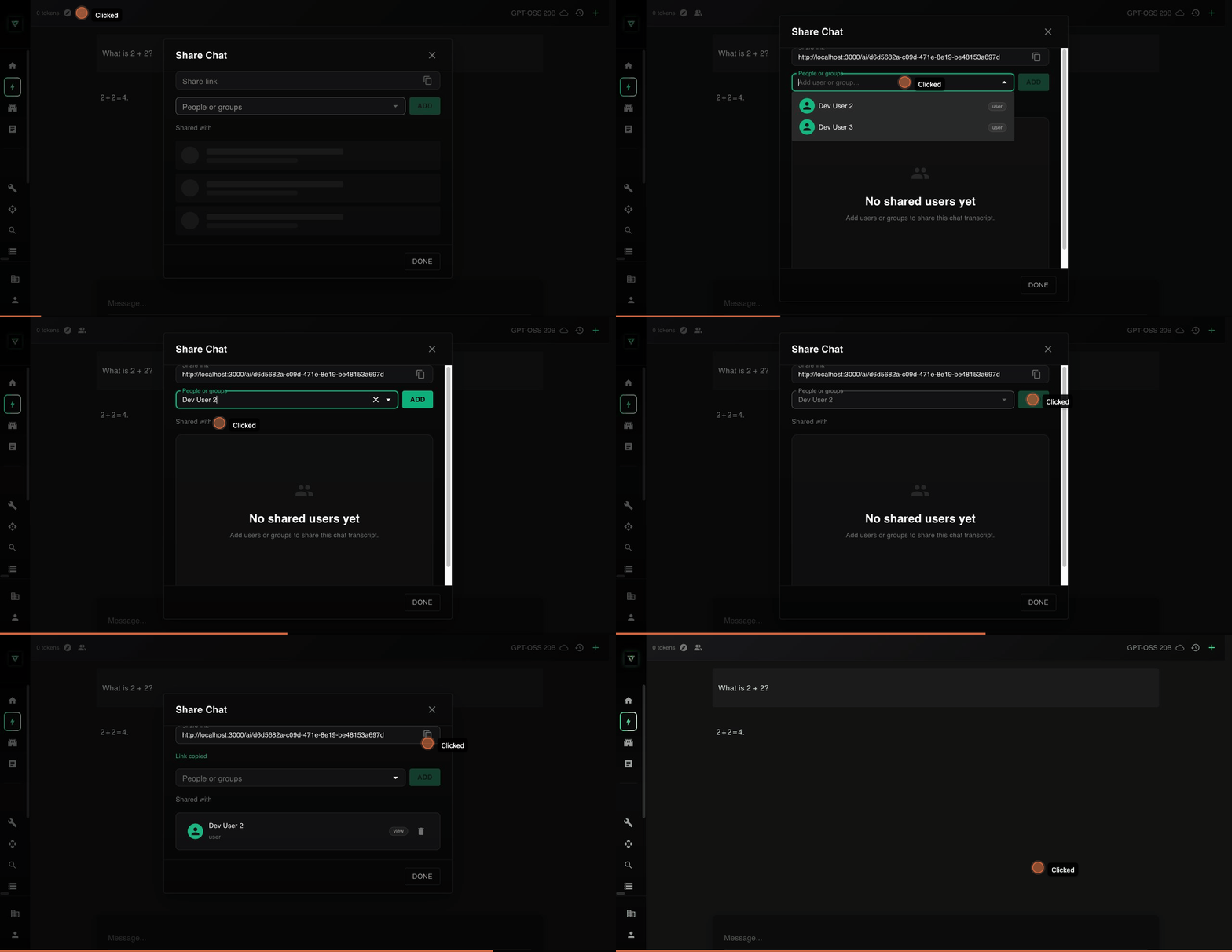
In the chat toolbar at the top of the screen, click the people icon. This is the share button. It appears next to the token counter on the left side of the toolbar.
If the icon is grayed out, check the following:
- The AI may still be generating a response. Wait for it to finish.
- The chat may not be saved yet. Send at least one message first.
- You may not have permission to share this chat. Only the owner and workspace admins can share.
Hover over the icon for a tooltip explaining why it is disabled.
3. Add users or groups
In the share dialog, use the search field to find the person or group you want to share with.
- Start typing a name or email address. The dropdown will filter to matching users and groups in your workspace.
- Select the user or group from the dropdown.
- Click Add to grant them access.
The person or group will appear in the "Shared with" list below.
You can repeat this process to share with multiple people or groups.
4. Copy the share link (optional)
At the top of the share dialog, you will see the share link for this chat. Click the copy icon next to the link to copy it to your clipboard. You can then paste this link in a message, email, or anywhere else to direct people to the chat.
The link only works for users who have been granted access. If someone without access opens the link, they will not be able to see the conversation.
5. Close the dialog
Click Done to close the share dialog. Sharing takes effect immediately -- there is no separate save step.