Importing a Team AI Workflow Skill
This guide walks through importing an Agent Skill from a supported source so your team can review, rename, and adapt it before using it in Assist.
This guide walks through importing an Agent Skill from a supported source so your team can review, rename, and adapt it before using it in Assist.
Import is useful when a workflow already exists outside Assist: a repository, a shared prompt pack, or a skill someone found in a marketplace. Imported skills are drafts, so they can be cleaned up before approval.
Before you begin
- You need the source URL or command for the skill.
- The source must contain a
SKILL.mdfile. - The imported files must fit within the skill file and size limits.
- Imported skills are drafts. Review them before approval and rollout.
Steps
1. Open Skills
Open Skills from the main navigation.
2. Start creating a skill
Click Create Skill.
3. Switch to Import
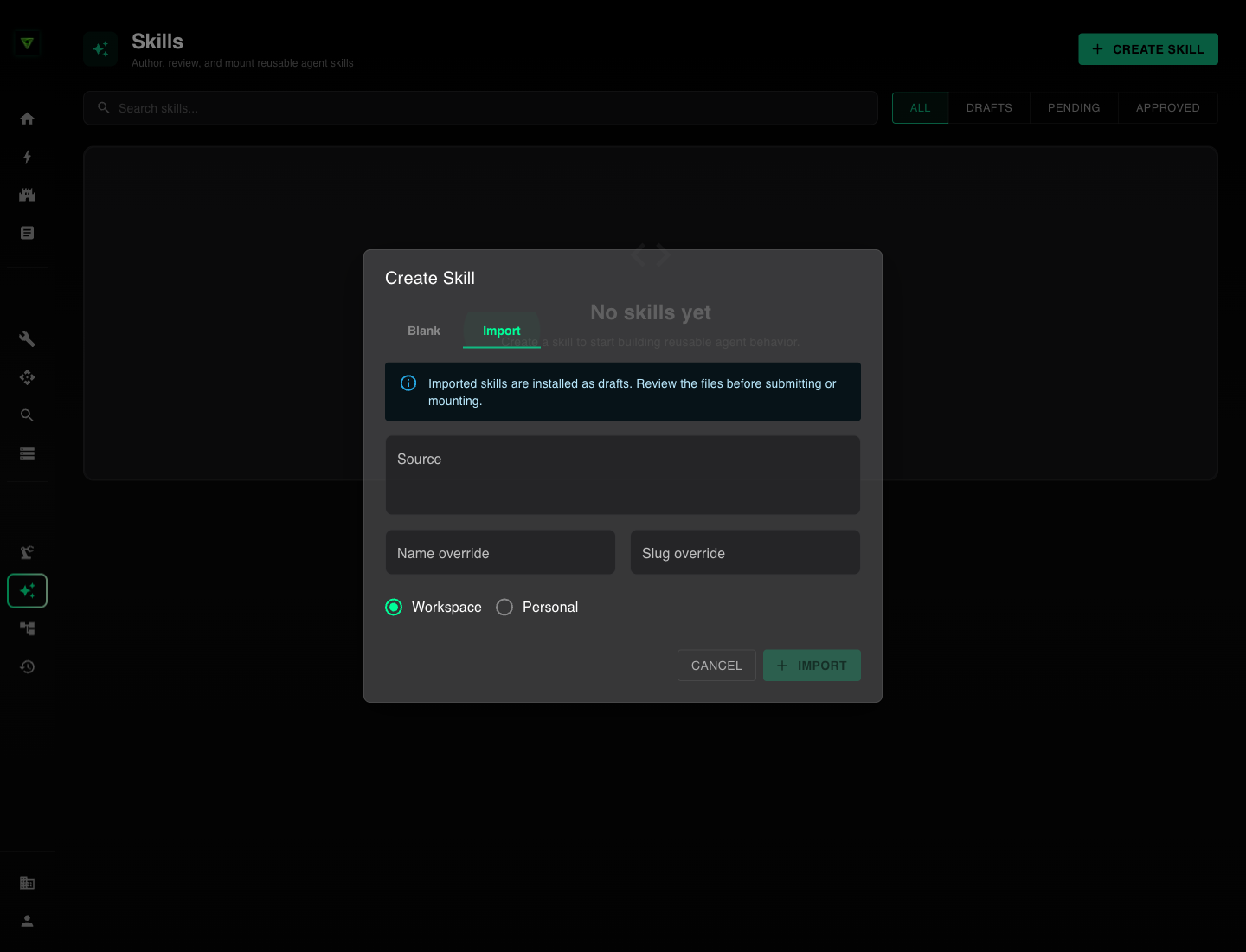
Select the Import tab. Assist shows an import form and explains that imported skills are installed as drafts.
4. Paste the source
Paste one of the supported source formats into Source:
- A Skills Marketplace URL.
- A GitHub repository URL.
- A GitHub folder URL.
- An
owner/reposhorthand. - A
skills add owner/repocommand.
Assist loads the repository tree, finds the skill directory, and imports supported text files.
5. Rename for your company
Use Name override or Slug override when the imported name is too generic or too technical. Choose a name that maps to the workflow your team wants to standardize.
For example, rename "Prompt Library Cleanup" to "Team AI Usage Cleanup" if the skill will help a mid-sized company collect and review scattered prompts before moving them into Assist.
6. Choose the scope
Select Workspace for shared workflows. Select Personal if you are evaluating the imported workflow before proposing it to the team.
7. Import the workflow
Click Import. Assist creates a draft Agent Skill and opens the detail page.
8. Review every file
Open Files and inspect SKILL.md plus supporting files. Check for:
- References to tools or systems your workspace does not use.
- Customer data handling rules that do not match your policies.
- Missing review steps for customer-facing or sensitive work.
- Instructions that assume the agent can take actions it cannot actually take.
- Prompt examples that include private customer, employee, or company data.
9. Submit for approval
When the draft matches your operating model, submit it for review. Imported skills should not be attached to live agents until a workflow owner or admin approves them.