Creating a Managed AI Workflow Skill
This guide walks through creating a blank Agent Skill for a reusable AI workflow your team wants to manage in Assist.
This guide walks through creating a blank Agent Skill for a reusable AI workflow your team wants to manage in Assist.
Use this when a useful prompt or workflow already exists informally and you want to turn it into a reviewed instruction set. For example, a support team might have a good escalation summary prompt, or a sales team might have a useful account-research checklist. Agent Skills give that work a durable name, version history, approval path, and agent attachment.
Before you begin
- You need access to the workspace where the workflow should live.
- Decide whether the workflow should be shared across the workspace or drafted personally first.
- Prepare a business-readable name, such as "Team AI Usage Cleanup" or "Support Escalation Summary".
- Decide who should review the first approved version before it is attached to an agent.
Steps
1. Open Skills
Open Skills from the main navigation. The page lists existing Agent Skills with status, scope, file count, mount count, and last update time.
2. Start a new Agent Skill
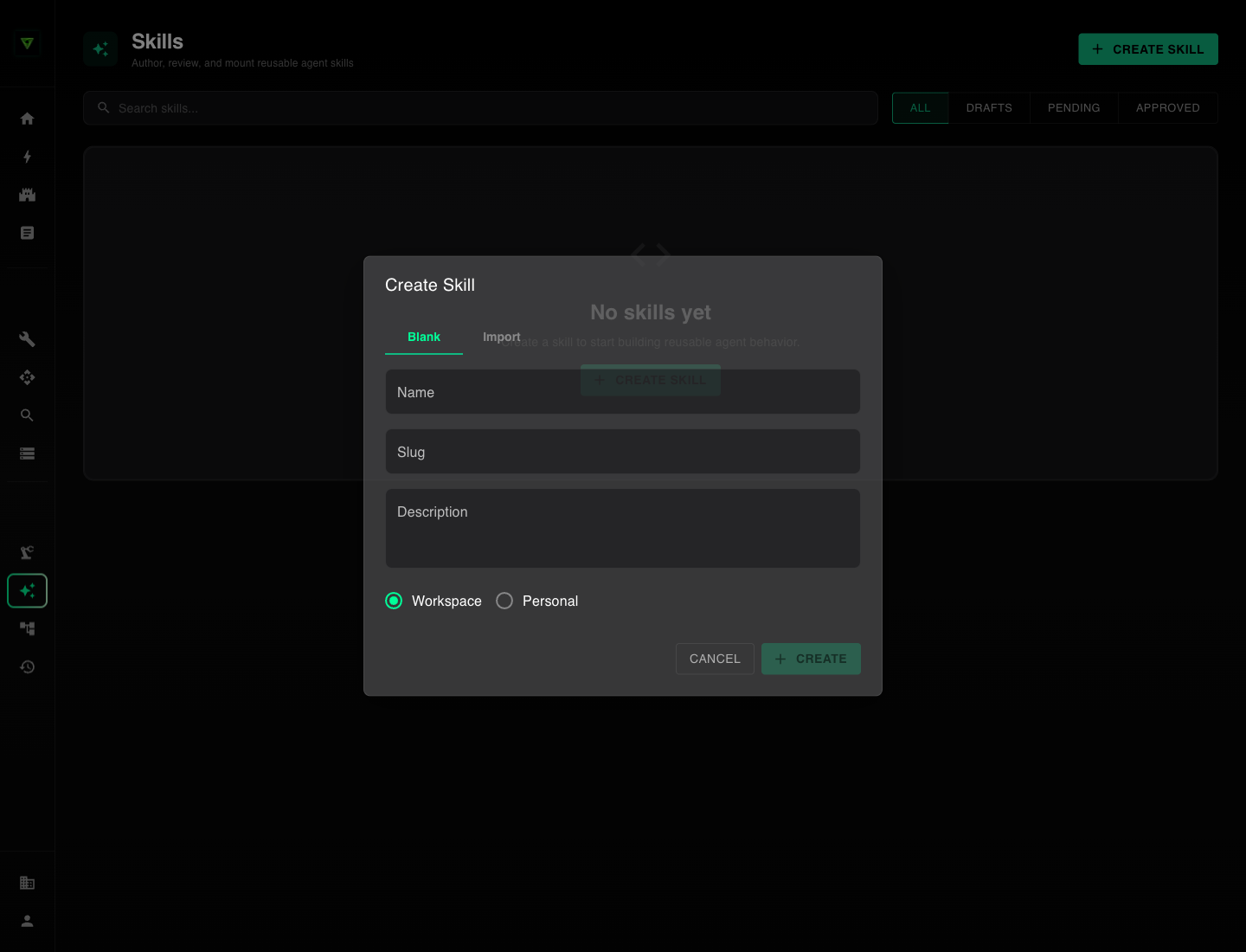
Click Create Skill. The dialog opens on the Blank tab.
3. Enter a business-readable name
Type a clear name in Name. Use the workflow name your team already uses, not an internal implementation label.
Good examples:
- Team AI Usage Cleanup
- Support Escalation Summary
- Sales Call Follow-Up Draft
- Monthly Metrics Commentary
- Customer Onboarding Checklist
Avoid names like Prompt v2, Ops AI, or Helper Skill. Those names become hard to govern once several departments start moving workflows into Assist.
4. Confirm the slug
Assist generates a Slug from the name. Keep it short and recognizable because the default attachment path is based on it.
For example, team-ai-usage-cleanup becomes /skills/team-ai-usage-cleanup.
5. Add a description
Use Description to explain the business situation where the workflow applies. Write this for an operations lead, department manager, or admin who is scanning the skill list.
Example:
Turns ad hoc prompts, shared docs, and disconnected AI workflows into reviewed Assist instructions for support, sales, and operations.
6. Choose the scope
Select Workspace for a shared workflow that multiple people or agents should use. Select Personal when you are drafting privately before review.
For AI cleanup work, workspace scope is usually the target state. Personal scope is useful while a department lead is still testing the instructions, collecting examples, or removing sensitive content from an imported prompt.
7. Create the skill
Click Create. Assist creates a draft version and opens the detail page.
8. Replace the starter manifest
Open Overview or Files and review /SKILL.md. Keep the YAML frontmatter
at the top of the file: name must contain the skill slug, and description
must explain what the skill does and when an agent should use it. Assist will
reject a save if either required field is missing or malformed.
Replace the starter Markdown body with the actual workflow: when to use it, which inputs are required, what the agent should produce, what the agent should avoid, and when a human should review the result.