Creating a Tool
This guide walks you through creating your first tool in Assist.
This guide walks you through creating your first tool in Assist.
Before you begin
- You need a workspace in Assist.
- You need to know which external system you want to connect to: its API URL, how it authenticates (API key, token, etc.), and what data you want to read or write.
- You do not need to be a developer. If you are working with an AI agent through an MCP connection (Claude Desktop, ChatGPT, Cursor), you can ask the AI to create the tool for you by describing what you need.
Option A: Create a tool through chat (recommended)
The fastest way to create a tool is through conversation -- either in Assist's built-in chat or from an external AI client (Claude Desktop, ChatGPT, Cursor) connected via MCP. You describe what you need in plain language, and the AI writes the code, configures permissions, and walks you through testing.
From Assist's chat
Open the AI chat in Assist and describe the tool you want:
"I need a tool that looks up order details from our WMS. The API is at https://wms.internal.company.com/api/v2, it uses bearer token authentication, and I want to search by order number. The response should include order status, items, and shipping info."
The AI creates the tool, writes the handler code, and sets up the input schema. It then asks you to test it:
"The tool is created. Try it -- what order number should I look up?"
Give it a real order number. If the results look wrong, tell the AI what to fix:
"The date format is wrong -- use MM/DD/YYYY instead of ISO. And add the customer name to the response."
The AI updates the code, tests again, and when everything works, it commits and publishes the tool. You never touch a code editor.
From an external AI client via MCP
If you are connected to Assist through an MCP server, the same workflow works from Claude Desktop, ChatGPT, Cursor, or any MCP-compatible client. The AI has access to Assist's tool-creation capabilities through the MCP connection.
"Create a tool called 'lookup_order' that takes an order number and returns order details from our WMS API at https://wms.internal.company.com/api/v2. It uses bearer token authentication."
The AI creates the tool in Assist, tests it, and iterates based on your feedback -- all from within your preferred AI client.
What the AI handles for you
When you create a tool through chat, the AI:
- Writes the TypeScript handler code
- Configures the input schema (what parameters the tool accepts)
- Declares which environment variables the code expects (for example, that the tool reads
API_KEYfromevent.env) - Suggests which domains the tool needs network access to
- Runs tests and fixes errors
- Commits and publishes when the tool is ready
You provide: the system you want to connect to, how it authenticates, and what data you want. The AI does the rest.
What you configure in the UI
Two things should not be handled through chat:
- Credential values (API keys, tokens, secrets) -- paste these directly into the masked input on the tool's Permissions tab so they never enter the LLM context or chat history.
- Network access list -- confirm and edit the allowed domains under Network Access on the same tab.
See Managing Permissions for the step-by-step UI flow.
See the playbooks for detailed walkthroughs of building tools for specific systems through conversation.
Option B: Create a tool in the Assist UI
1. Open the Tools page
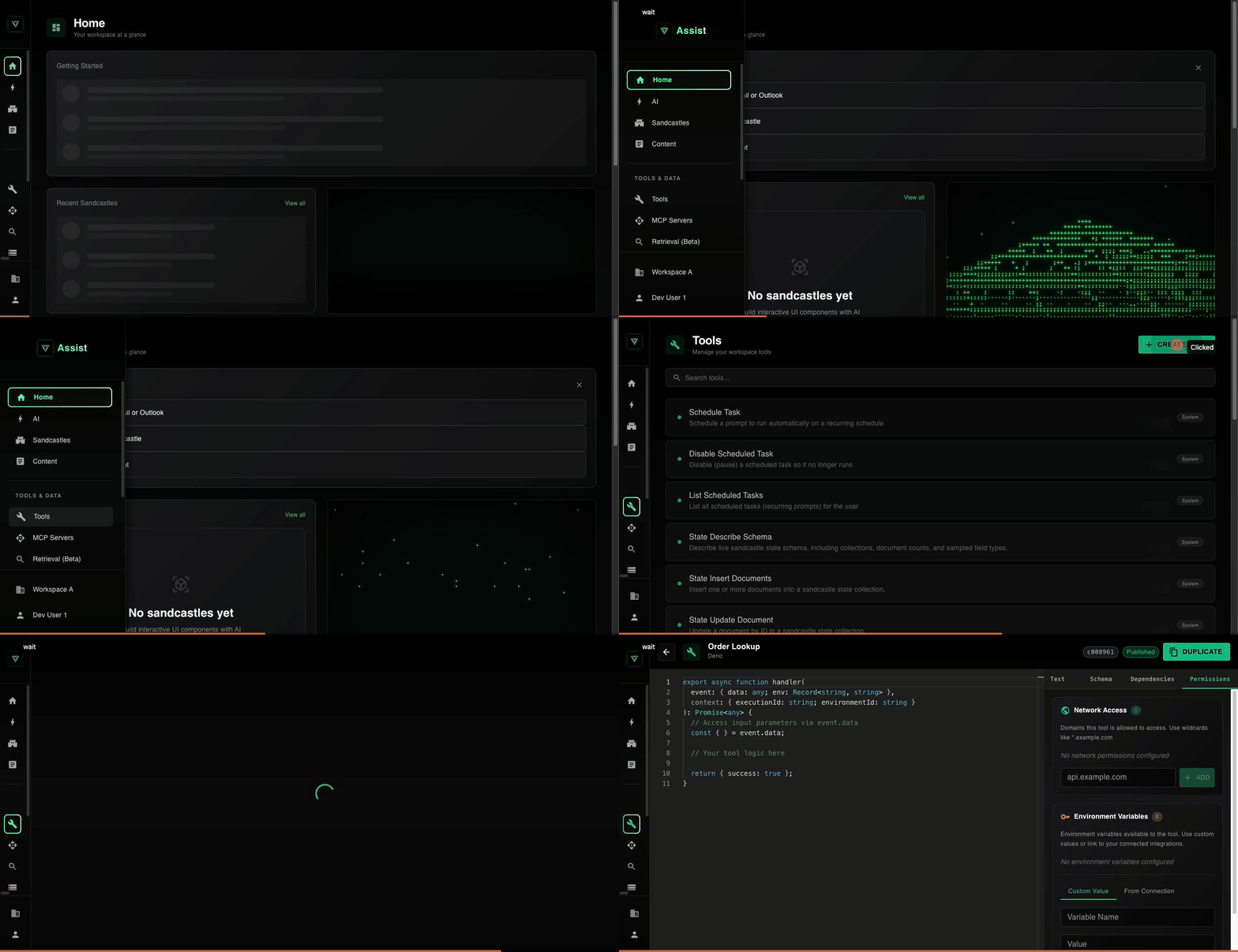
Navigate to Tools in the sidebar. You see a list of all tools in your workspace -- both system tools (built in) and dynamic tools (created by your team).
2. Click Create Tool
Click Create Tool in the top-right corner. The tool editor opens with a split-panel layout: a code editor on the left and settings on the right.
3. Enter a name and description
In the right panel:
- Name -- A human-readable name for the tool (for example, "Order Lookup" or "CRM Contact Search"). This is what users and agents see when discovering the tool.
- Description -- A clear description of what the tool does. This is used for tool discovery, so be specific. Instead of "Looks up data," write "Searches the CRM by customer name or account ID and returns contact details, recent activity, and open deals."
4. Select a runtime
Choose Deno (TypeScript) from the Runtime dropdown. This is the only runtime currently available. Python and Go are coming soon.
5. Write the handler code
In the code editor on the left, write your tool's handler function. The editor starts with a template:
The handler function receives two arguments:
- event.data -- The input parameters passed by whoever calls the tool. You define what fields this object has.
- event.env -- Environment variables you configured for the tool (API keys, tokens, etc.).
Your function should return the data you want the caller to receive. Return an object, a string, or any JSON-serializable value.
You can import npm packages and Deno modules in your code. Assist automatically detects your imports and sets up the dependencies.
6. Create the tool
Click Create Tool. The button is disabled until you have filled in both the name and description.
After creation, you are redirected to the tool's edit page where you can test, commit, and publish your code.
Next steps
Your tool is now a draft. To make it available:
- Test it to verify it works
- Commit and publish to make it live
- Configure permissions to grant network access and set up environment variables
If something goes wrong, see Troubleshooting.