Creating a Rule from a Tool Call
Most rules start with a call you have already seen: an agent ran something it should not have, or a query reached a table that is off limits. This guide show...
Most rules start with a call you have already seen: an agent ran something it should not have, or a query reached a table that is off limits. This guide shows how to turn that call into a rule without retyping any of it.
Before you begin
- You must be a workspace admin. The option does not appear for members.
- The call must be in Tool History.
Steps
1. Find the call
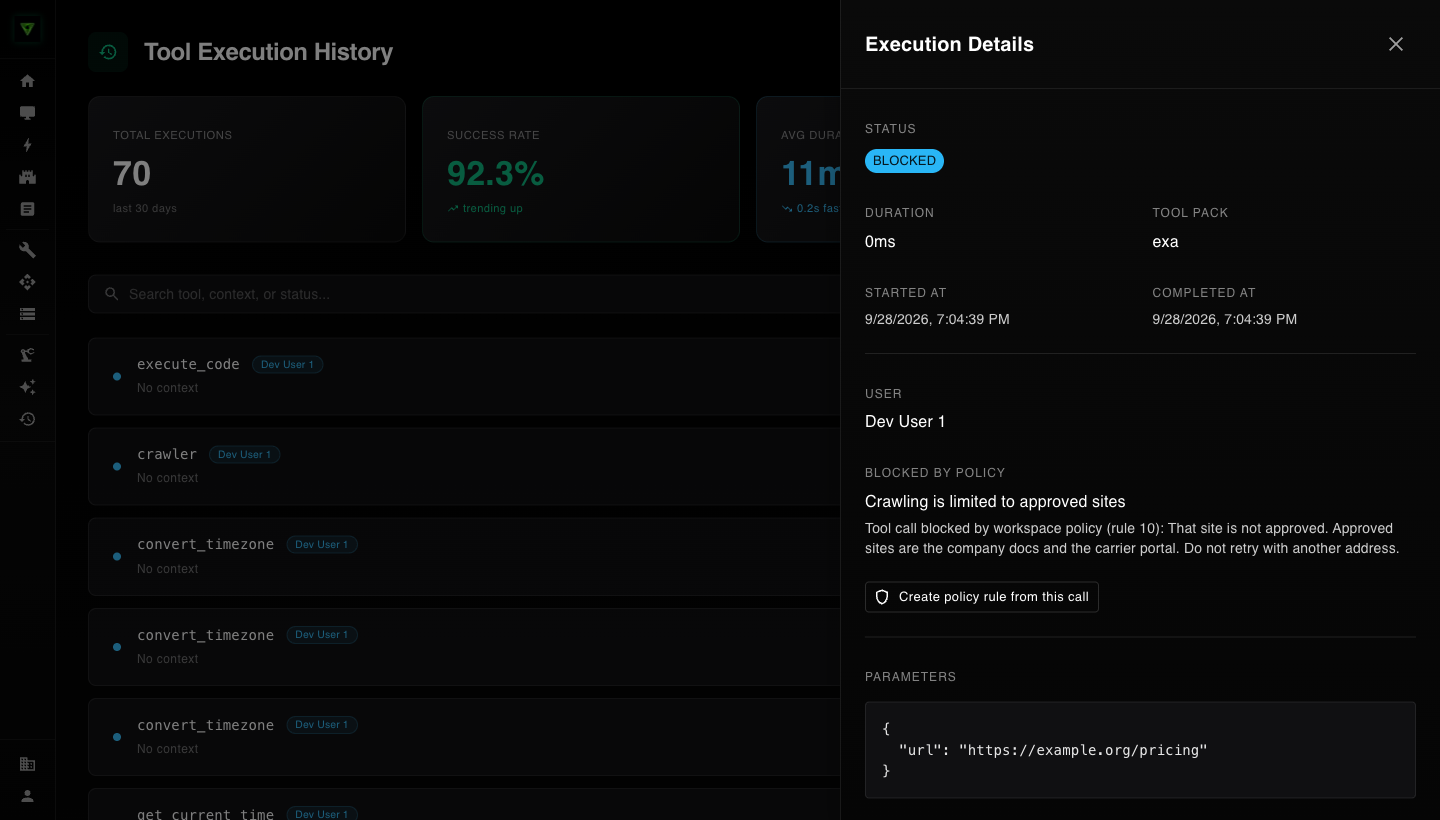
Open Tool History. Use the search field or the status filters to find the call. Click it to open Execution Details.
2. Start the rule
In Execution Details, click Create policy rule from this call.
The rule editor opens with these already filled in:
- Tool and Tool pack, taken from the call.
- Params JSON under Test conditions, holding the values the call was made with.
The action is set to Deny and the rule applies to the whole workspace. Change either if you need to.
3. Add a condition from the call's values
Click Add condition, click the Path field, and press Tab. The list shows the tool's parameters, and each one that appeared in the call shows the value it had.
Choose a parameter. The editor fills in the path, picks an operator that suits the type, and fills in the value from the call.
Adjust the condition to cover what you want to stop, not only this one call. For example, if the call queried a table called payroll_2026, you might change equals to contains and the value to payroll.
For a parameter that holds a web address, the editor suggests url_host_not_in with the host from the call. This blocks every host except the ones listed. Switch to url_host_in if you want to block that host instead.
4. Test against the call
Click Run test. The values from the call are already in Params JSON, so the result tells you whether the rule would have caught it.
5. Finish and save
Fill in Reason and Message returned to the model on deny, choose a Placement, and click Create Rule.
What is carried over
Only the tool, the tool pack, and the values of the call are carried over. Values that Tool History hides, such as passwords and tokens, stay hidden and appear as [REDACTED].
The call is passed to the editor once. If you cancel and want to start again, go back to Tool History and click the option again.