Testing Rules with the Simulator
The simulator shows what your rules would decide for a specific person and a specific call, without running the tool. Use it before you rely on a rule and wh...
The simulator shows what your rules would decide for a specific person and a specific call, without running the tool. Use it before you rely on a rule and whenever someone asks why a call was blocked.
Before you begin
- You must be a workspace admin.
- The person you test for must be a member of the workspace.
- Have an example of the call ready: the tool, and the values it would be called with.
Steps
1. Open the simulator
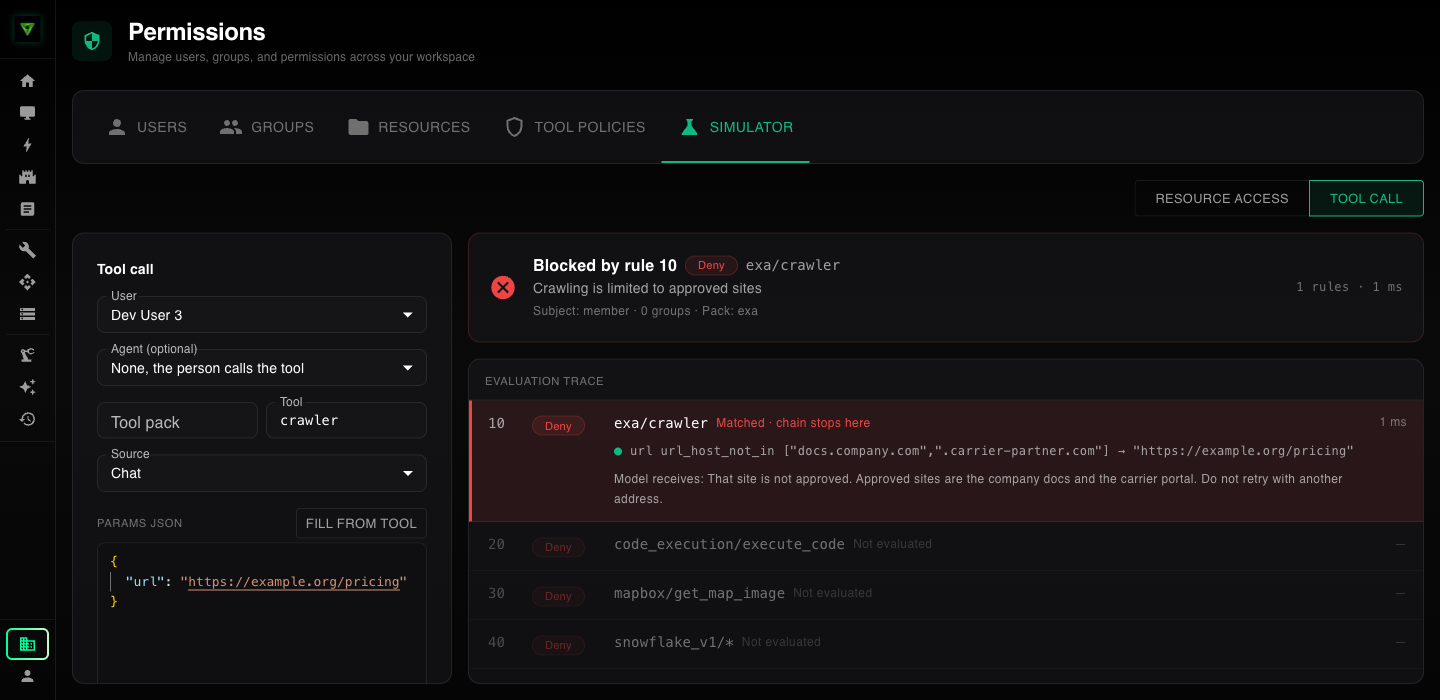
Open Permissions and select the Simulator tab. In the top right, switch from Resource access to Tool call.
2. Choose the person
In User, pick the person to test for. The simulator uses their role and groups, so the result is what that person would get.
3. Choose the agent (optional)
To test a call made by an agent, pick it in Agent (optional). Source switches to Subagent. Rules that apply to that agent are included, along with the rules that apply to the person the agent runs for.
Leave it at None to test a call the person makes themselves.
4. Choose the tool
In Tool, start typing and press Tab to complete the name. Choosing a tool from the list fills in Tool pack.
You can leave Tool pack blank. The simulator looks up the tool's pack so that rules targeting a pack are evaluated the same way they are for a real call.
5. Choose the source
In Source, pick where the call would come from: Chat, Subagent, MCP, Workflow, or Direct. Rules limited to certain sources only apply to those.
6. Enter the values
In Params JSON, enter the values the tool would be called with. Click Fill from tool to start from the tool's parameters.
7. Evaluate
Click Evaluate. The result appears on the right.
Reading the result
The top panel shows the decision:
- Allowed or Blocked, and whether a rule or the workspace default decided.
- The reason recorded on the rule.
- The person's role, how many groups they belong to, the tool pack the call was evaluated under, and whether the call was made by an agent.
Below it, Evaluation trace lists every rule in order with what happened:
| Status | Meaning |
|---|---|
| Matched · chain stops here | This rule decided the call |
| Skipped | The rule did not apply. The line next to it says why. |
| Not evaluated | A rule higher in the list already decided |
A skipped rule gives one of these reasons:
| Reason | What to check |
|---|---|
| Target does not match | The rule is for a different tool or tool pack |
| Subject does not match the caller | The rule applies to a different role, group, person, or agent |
| Source is not in the rule's sources | The rule is limited to calls from somewhere else |
| A condition did not match | The rule targets the call, but at least one condition failed. The conditions are listed underneath. |
For a rule with conditions, the trace shows each condition, whether it matched, and the value it found. For a classifier, it shows what the classifier returned.
What the simulator does and does not do
- It does not run the tool you are testing.
- It does run classifier tools, because their answer decides the result. Those runs are not recorded in Tool History.
- It does not record a blocked call in Tool History.
- It uses the rules as they are saved right now. Disabled rules are left out, the same as for a real call.