Writing Conditions
Conditions let a rule look at the values inside a tool call. This guide covers how to point a condition at a value, which comparisons are available, and the ...
Conditions let a rule look at the values inside a tool call. This guide covers how to point a condition at a value, which comparisons are available, and the behaviors that are easy to get wrong.
Before you begin
- You must be a workspace admin.
- Open a rule in the editor. See Creating a rule.
- It helps to have an example of a real call. You can start a rule from one in Tool History. See Creating a rule from a tool call.
How a condition is built
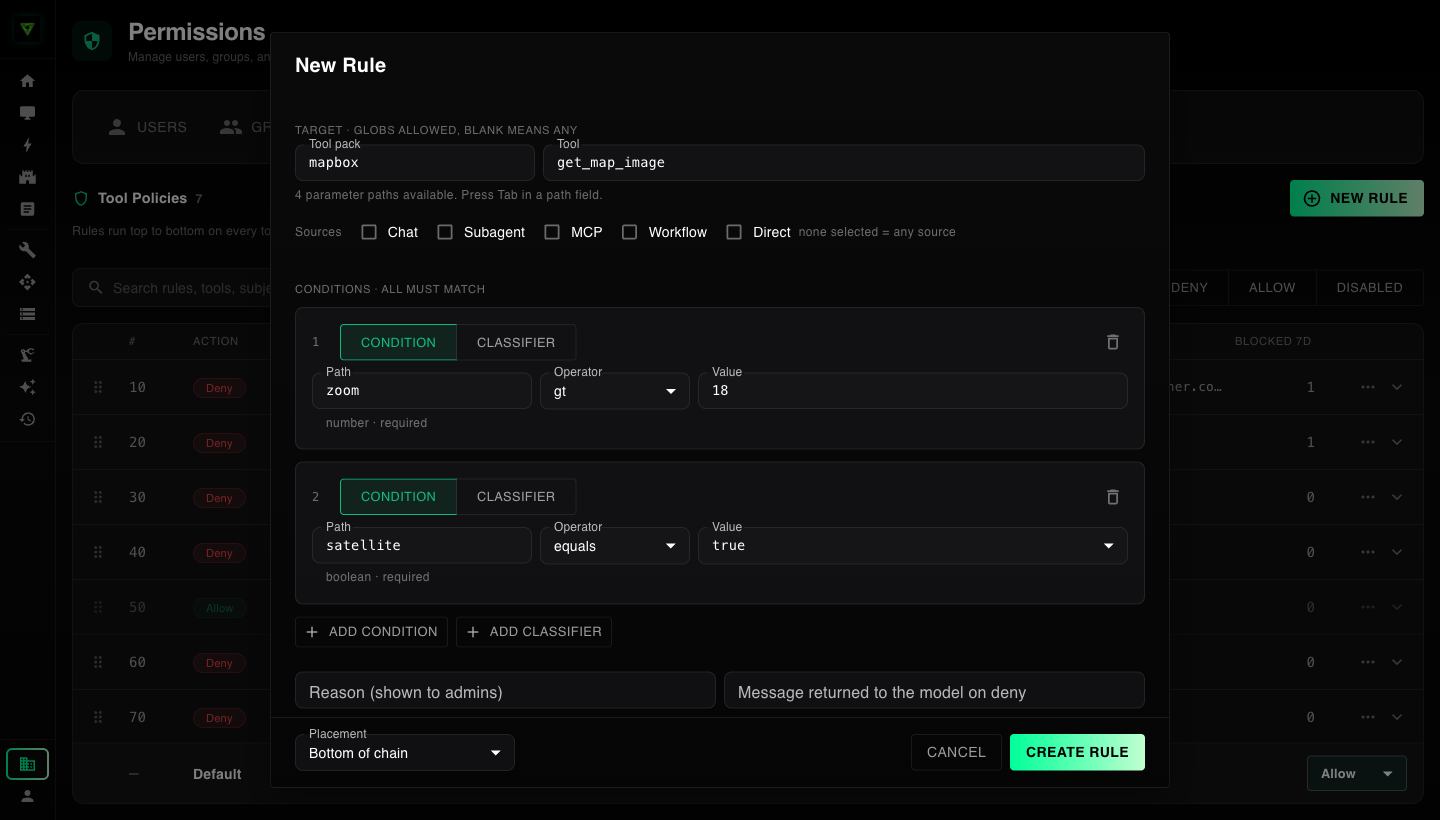
Each condition has three parts:
- Path: which value in the call to look at.
- Operator: how to compare it.
- Value: what to compare it against.
A rule can have several conditions. All of them must match for the rule to apply.
Steps
1. Add a condition
In the rule editor, click Add condition.
2. Choose the path
Click the Path field and press Tab. When the rule targets a single tool, the list shows that tool's parameters with their type and whether they are required. Press Tab to move through the list and Enter to choose.
You can also type a path yourself:
| Path | What it points at |
|---|---|
query | The parameter named query |
options.limit | limit inside options |
to[0].email | The email of the first item in to |
to[*].email | The email of every item in to |
$ | The whole call |
If you type a path that is not one of the tool's parameters, the editor shows a warning under the field. You can still save the rule, but check the name. A condition on a parameter the tool does not have will never match.
Parameter suggestions need a single tool. When the target is a pattern or is left blank, the path is plain text.
3. Choose the operator
The Operator list narrows to what makes sense for the parameter you chose.
| Parameter type | Operators offered |
|---|---|
| Text | equals, not_equals, contains, starts_with, ends_with, matches, in, not_in, exists, missing |
| Web address | url_host_not_in and url_host_in first, then the text operators |
| Number | equals, not_equals, gt, gte, lt, lte, in, not_in, exists, missing |
| True or false | equals, not_equals, exists, missing |
| Fixed set of choices | equals, not_equals, in, not_in, exists, missing |
| List | array_size_gt, exists, missing |
What each operator does:
| Operator | Matches when |
|---|---|
| equals / not_equals | The value is, or is not, exactly this |
| contains | The text includes this |
| starts_with / ends_with | The text begins or ends with this |
| matches | The text fits a pattern (regular expression) |
| in / not_in | The value is, or is not, one of a list |
| gt, gte, lt, lte | The number is greater than, at least, less than, or at most this |
| url_host_in / url_host_not_in | The web address is, or is not, on one of these hosts |
| array_size_gt | The list has more items than this |
| exists / missing | The value is present, or absent |
4. Enter the value
The Value field changes with the parameter type:
- True or false parameters show a choice of
trueorfalse. - Parameters with a fixed set of choices show those choices. For in and not_in, you can pick several.
- Number parameters take a number.
- List operators take values separated by commas.
Tick ignore case to treat uppercase and lowercase as the same. It is offered for text comparisons only.
5. Test it
Enter an example in Params JSON under Test conditions and click Run test. Each condition reports whether it matched and what value it found.
Behaviors to know
Text is matched exactly as typed
contains, equals, starts_with, and ends_with treat every character literally. An asterisk in the value is looked for as an asterisk. It is not a wildcard.
To match a pattern, use the matches operator. For example, to match any text that includes foo bar baz followed by anything, use foo bar baz.*. Patterns match anywhere in the text unless you anchor them with ^ at the start or $ at the end.
Wildcards with * work only in the Tool pack and Tool fields of the target.
Matching is case sensitive by default
DROP TABLE does not match a contains condition for drop table unless ignore case is ticked. For rules that guard against something, tick it.
A dot in a pattern does not cross lines
In a matches pattern, . stands for any character except a line break. A query written across several lines will not match select.*from secrets. Use [\s\S]* in place of .* when the text can contain line breaks.
Patterns are checked for safety
Some patterns can take a very long time to evaluate. The editor rejects patterns with nested repetition such as (a+)+, patterns that refer back to an earlier group, and patterns that are too long.
Negative operators need a value to be present
not_equals, not_in, and url_host_not_in match only when the parameter is present in the call. If the call leaves the parameter out, they do not match.
If a parameter is optional and you want to block calls that omit it, add a second rule with the missing operator.
Host lists match the whole host
acme.com matches acme.com only. To include subdomains such as api.acme.com, start the entry with a dot: .acme.com.
With url_host_not_in, a value that is not a valid web address counts as off the list. A rule that blocks every host except the ones you list also blocks evil.com/path and other malformed addresses.
Lists match if any item matches
With a path such as to[*].email, positive operators match when any item matches. Negative operators match only when every item does.